> For the complete documentation index, see [llms.txt](https://docs.cloudscaff.com/llms.txt). Markdown versions of documentation pages are available by appending `.md` to page URLs; this page is available as [Markdown](https://docs.cloudscaff.com/inventory-management/inventory-overview/delete-an-item.md).
# Delete an Item
Remove an inventory item from the system.
## **Purpose**
The **Delete Item** action allows authorized users to permanently remove an inventory item from the system **only when it is no longer in use** on any site or project.
***
## How to Access
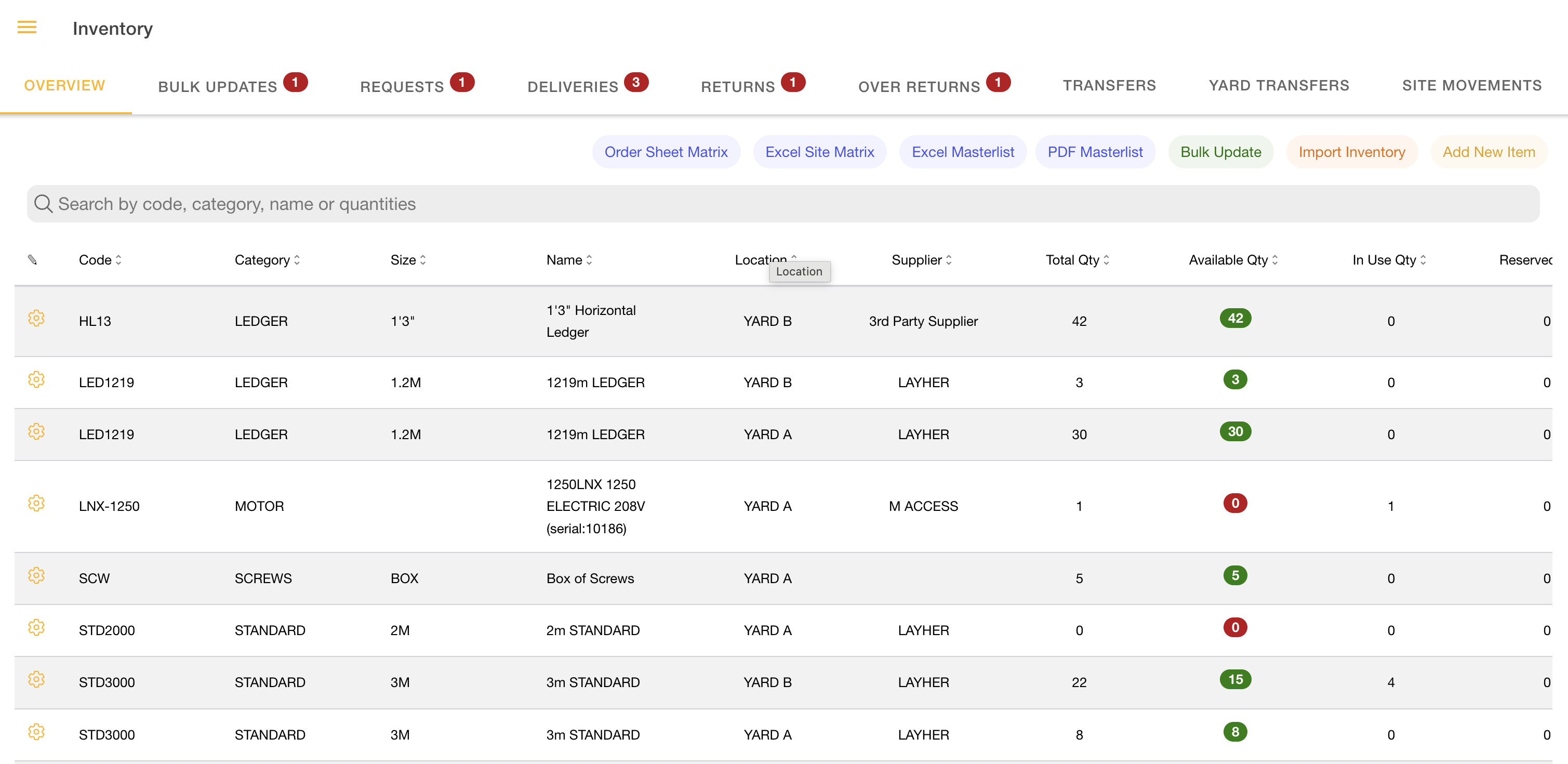
Open the main menu → Select **Inventory** → Stay on the Inventory Overview Tab → Click the **Gear Icon** button (*visible only when permitted*)
> **Notes:**\
> Visibility depends on permissions.\
> Buttons and actions may be hidden based on role.
***
## Step-by-Step Workflow
#### Overview
Open the Inventory list, select a row, open the actions menu, and choose the **Delete** action.
#### Step 1: Open the Inventory List
Go to Inventory and open the Overview tab.
The table displaying your inventory items will include a gear icon on each row.
#### Step 2: Open the Item Actions Menu
Click the row you want to act on.
Click the gear icon in that row.
A menu with the available actions for that item.
#### Step 3: Choose Delete Action
This will permanently remove the item from your inventory.
| Scenario | Item State | System Behaviour | Required Action |
| ---------------------------- | ---------------------------------------------------------------------------------------------------------------------------------------------- | -------------------------------------------------------------------------------------------------------------------------------------------------------------------------------------------- | ---------------------------------------------------------------------------------------------------------------------------------------------------------------- |
| Delete Action **Successful** | No quantity issued to sites
No quantity assigned to projects
In Use balance = 0
Available balance = Total Quantity
| System allows deletion
User is prompted to confirm the delete action
Item is permanently removed from the inventory
Item no longer appears in the inventory list
| Confirm the delete action
No further steps required
|
| Delete Action **Blocked** | Quantity issued to sites
Quantity allocated to active projects
In Use balance greater than 0
| System prevents deletion | Return all issued quantities from sites or projects
Ensure In Use = 0
Ensure Available = Total Quantity
Retry the Delete Item action
|
If the Delete action is blocked, the system will display an alert showing
If the Delete action is successful, the system will display a confirmation window to confirm if you woudl like to proceed with deleting the item.
***
## Permissions Required
| Permission Section | Permission Type | Required For |
| ------------------ | --------------- | ----------------------- |
| Roles | Super Admin | Edit, Delete, Duplicate |
| Roles | Inventory Admin | Edit, Delete, Duplicate |
| Inventory | Delete | Delete |
***
## Troubleshooting and Common Questions
* **Delete option not visible:**\
Check your role permissions or contact an administrator
* **Delete blocked:**\
Verify all issued quantities have been returned and balances are correct
* **Item still visible after delete:**\
Refresh the inventory list or re-open the Inventory Overview page
***
## **Important Notes**
* Deleted items are **fully removed from the system**
* Items cannot be deleted while actively issued or allocated
* Deletion helps maintain **accurate inventory records** and prevents orphaned data