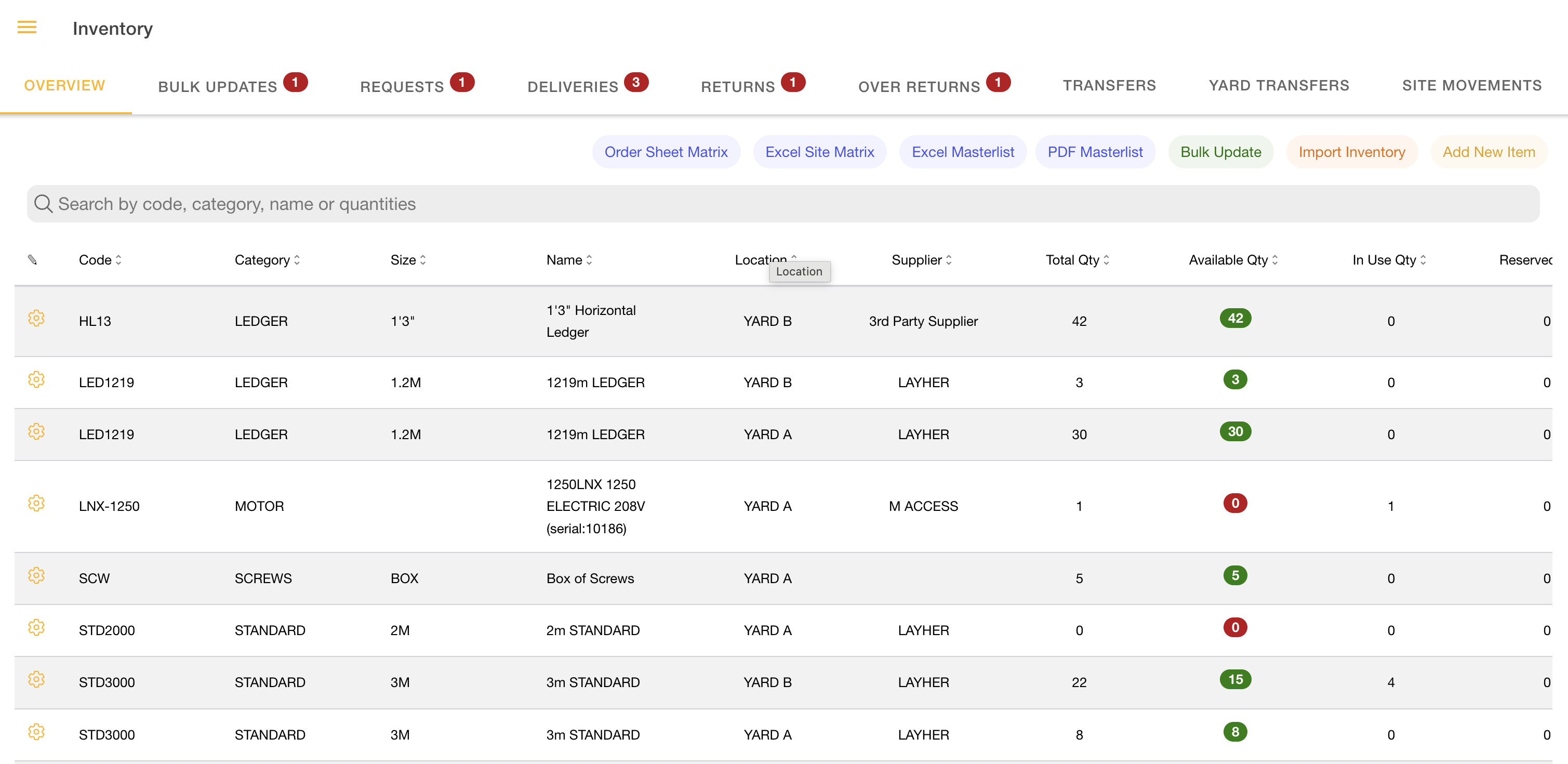
Item Actions Menu

Take actions on a single inventory item from the list.\

Purpose

This menu lets a user choose what to do with one item in the Inventory list. The available actions are Edit, Delete, Duplicate, View Locations, and Movement Log.


How to Access

Open the main menu → Select Inventory → Stay on the Inventory Overview Tab → Click the Gear Icon button (visible only when permitted).

Notes: Visibility depends on permissions. Buttons and actions may be hidden based on role.


Step-by-Step Workflow

Overview

Open the Inventory list, select a row, open the actions menu, and choose an action. Some actions may be hidden based on permissions.

circle-info

Delete may be blocked if the item is still in use.

Step 1: Open the Inventory List

Go to Inventory and open the Overview tab.

The table displaying your inventory items will include a gear icon on each row.

Step 2: Open the Item Actions Menu

Click the row you want to act on.

Click the gear icon in that row.

A menu with the available actions for that item.

Step 3: Choose an Action

Click the action you want.

Action
Description

Edit

Update item details and move items between Available, Maintenance, Damaged, and Lost statuses. All changes are recorded in the Yard Movement Log.

Delete

Permanently remove the item from your inventory.

Duplicate

Create a new item by copying all details from an existing item, then edit and save it as a separate inventory record.

View Locations

See where the item is currently located across all projects and sites in real time.

Movement Log

View the full movement history of the item, including inventory adjustments, deliveries, returns, over-returns, transfers, and yard movements.


Permissions Required

Permission Section
Permission Scope
Required For

Roles

Super Admin

Edit, Delete, Duplicate

Roles

Inventory Admin

Edit, Delete, Duplicate

Inventory

Update

Edit

Inventory

Delete

Delete

Inventory

Create

Duplicate


Troubleshooting and Common Questions

Issue
Explanation
Resolution

I do not see Edit, Delete, or Duplicate

Access is permission-based

Ask an admin to grant the needed permission

Delete does not work

The item is still in use

Return the item, then try again

Nothing happens when I click an action

The row may not be selected

Click the row first, then try again


Common Mistakes to Avoid

  • Trying to delete items that are still in use.

  • Assuming all actions are available to every user.

  • Clicking the gear without selecting the row.


circle-info
circle-info

Last updated