> For the complete documentation index, see [llms.txt](https://docs.cloudscaff.com/llms.txt). Markdown versions of documentation pages are available by appending `.md` to page URLs; this page is available as [Markdown](https://docs.cloudscaff.com/settings/user-management/role-builder-add-or-update-roles.md).
# Role Builder: Add or Update Roles
This section explains how to open the Role Builder, create new roles, or edit existing ones.
The Role Builder allows administrators to **create new roles** or **update existing roles** within Cloudscaff. Roles define what users can see and do within the system — ensuring access, control, and security are maintained across all teams.
> **Note:** Only users with sufficient permissions can create or modify roles. Any updates made to a role will apply automatically to all users currently assigned to that role.
***
## **Purpose**
The **Roles and Permissions** system in Cloudscaff is designed to control what each user can access, view, and perform within your organization’s account.
It ensures that every user — from site workers to administrators — operates within a clearly defined scope of authority, maintaining data security, operational control, and compliance across all sites and branches.
* **Roles** define **who** a user is in the system (for example, *Site Admin*, *Inventory User*, or *Supervisor*).
* **Permissions** define **what** that role can do — such as creating scaffolds, viewing reports, approving handovers, or managing inventory.
> **Notes:** By assigning specific roles with tailored permissions:
>
> * Administrators can ensure each user only accesses the areas relevant to their responsibilities.
> * Sensitive information and high-level tools remain restricted to authorized personnel.
> * Workflow consistency is maintained across teams, preventing accidental changes or unauthorized actions.
***
## **Accessing the Role Builder**
You can access the Role Builder in two ways:
1. **From User Profiles**
* Navigate to **Settings → User Profiles → Edit Roles button.**
* Click the "**Edit Roles**" Button in the top right corner
2. **From Edit User Page**
* Navigate to **Settings → User Profiles → Click on a user.**
* Select a user and click **Select Role** under **Set Role Permissions.**
Both these options will open the **Role Builder,** where you can use the "**Add**" or "**Modify**" role buttons.
***
## **Role Builder**
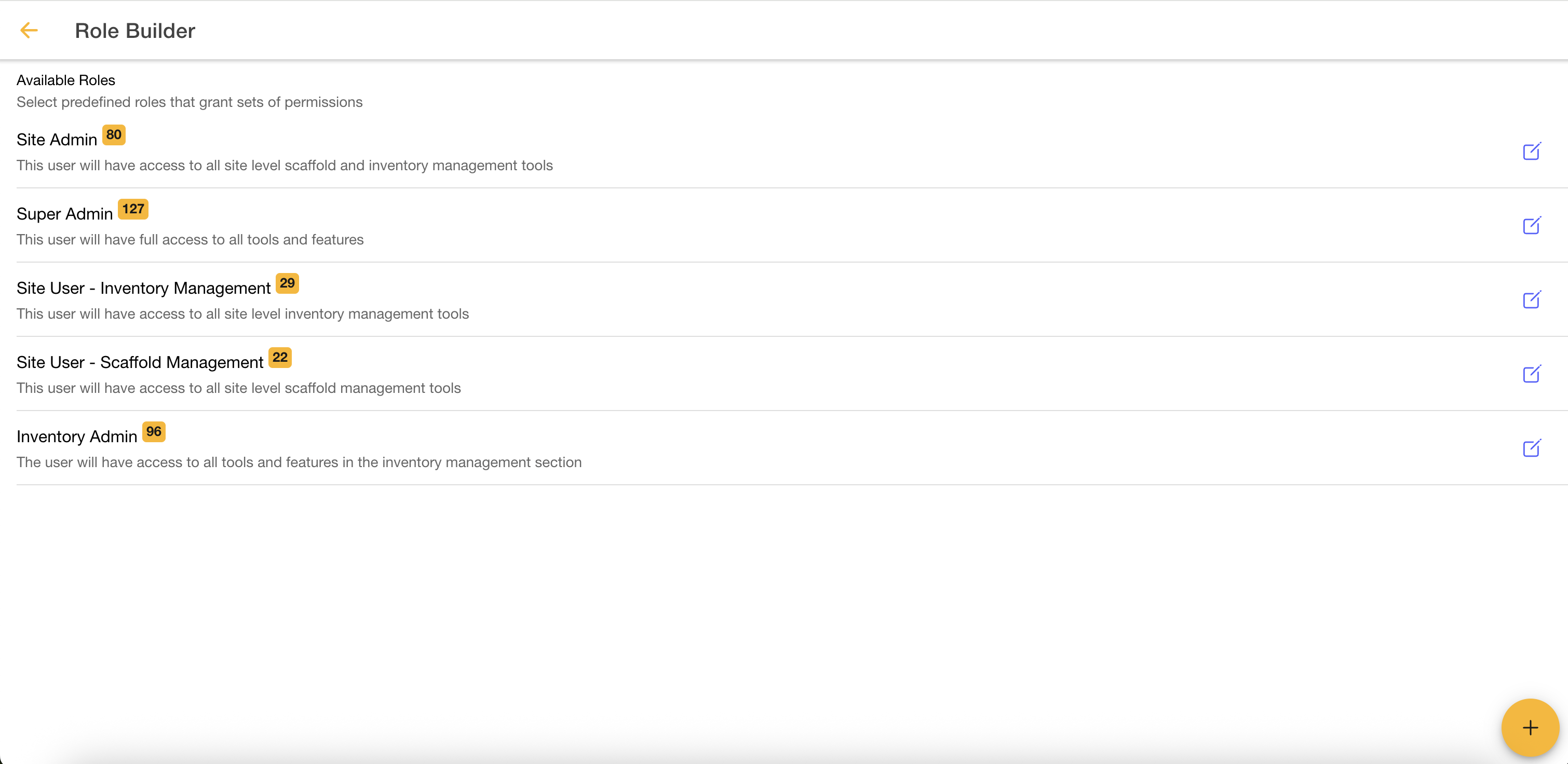
Once inside the Role Builder, you can either:
### **Create a new role**
Click the plus (+) button
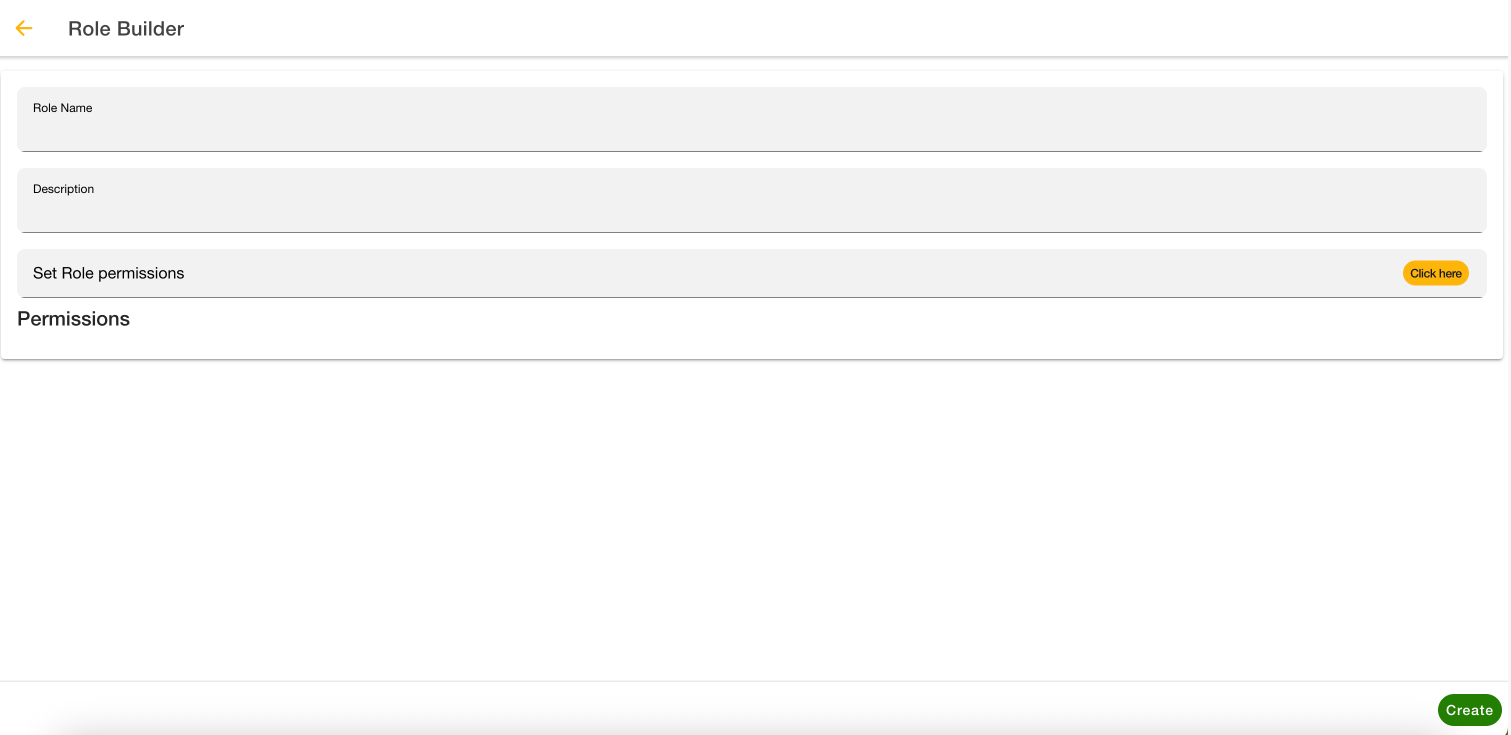
This will display the blank Role Builder page
### **Edit an existing role**
Click the edit button
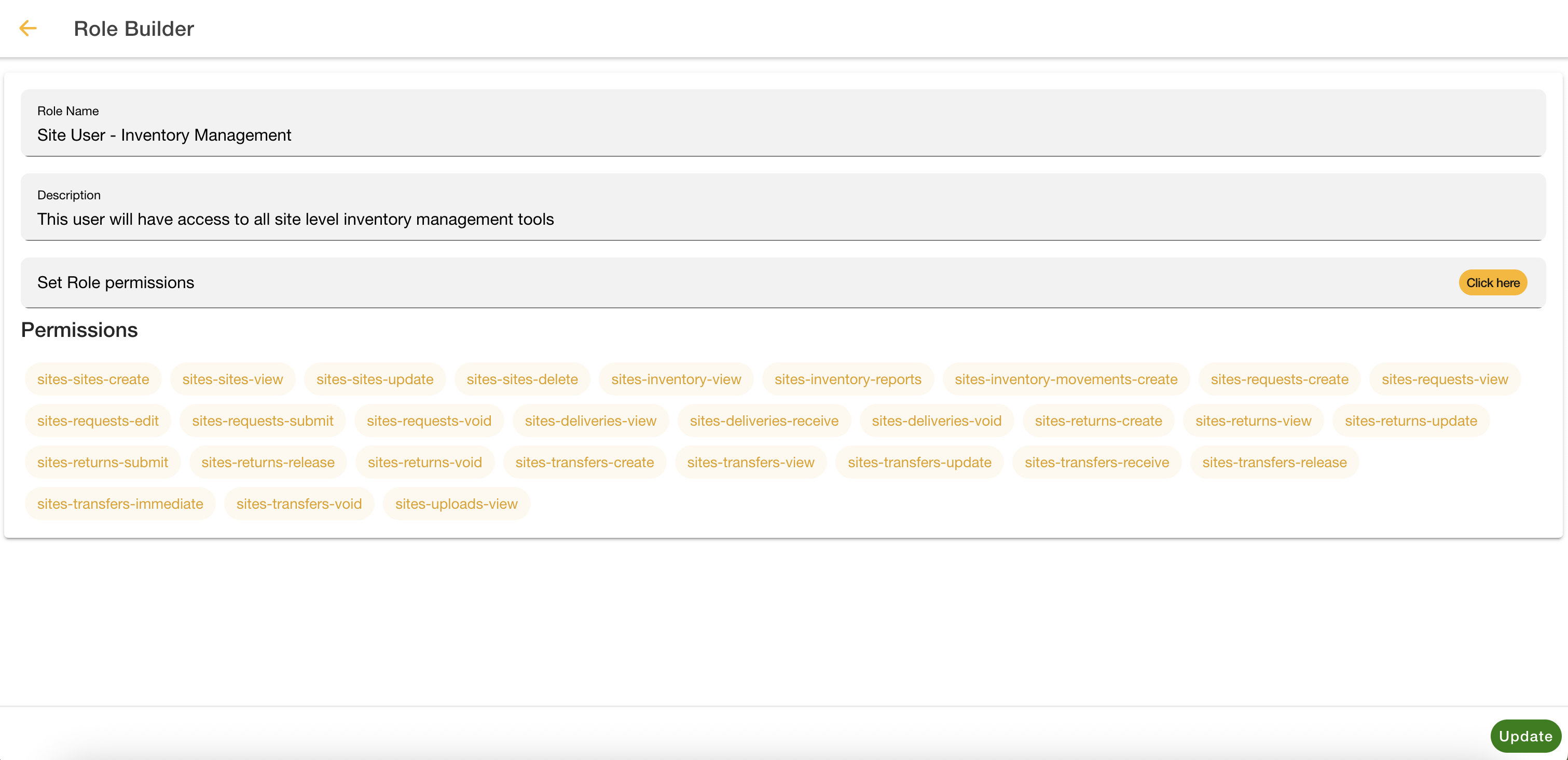
This will display the Role Builder page already populated with the data of that role
***
## **Fields Overview**
### **Role Name**
Enter the name for the role you are creating or updating.
Use clear and descriptive titles that reflect the scope of permissions (e.g., *Inventory Admin*, *Site User – Scaffold Management*).
### **Description**
Provide a short summary of what this role allows users to do.
This description appears in the Role List and helps identify the role’s purpose.
### **Adding Permissions to a Role**
Click the "**Click here**" button. This will open the **Permissions Selector**, which displays all available permissions in the system.
From here, you can choose exactly which permissions the role will be granted access to.
{% hint style="info" %}
[Learn how to add permissions to a role](/settings/user-management/add-or-update-permissions.md)
{% endhint %}
***
## **Example: Creating a New Role**
When adding a new role:
1. Enter the **Role Name.**
2. Add a **Description.**
3. Click **Set Role Permissions – Click Here** to open the list of permissions.
4. Select all applicable permissions for this role.
5. Click **Create** to save and add the role.
> **Tip:**\
> Use the **Create** button in the bottom-right corner of the screen to confirm the new role.\
> The role will now appear in the Role Builder list, available to assign to any user.
***
## **Example: Editing an Existing Role**
When editing an existing role:
1. The **Role Name** and **Description** fields will prefill with the current values.
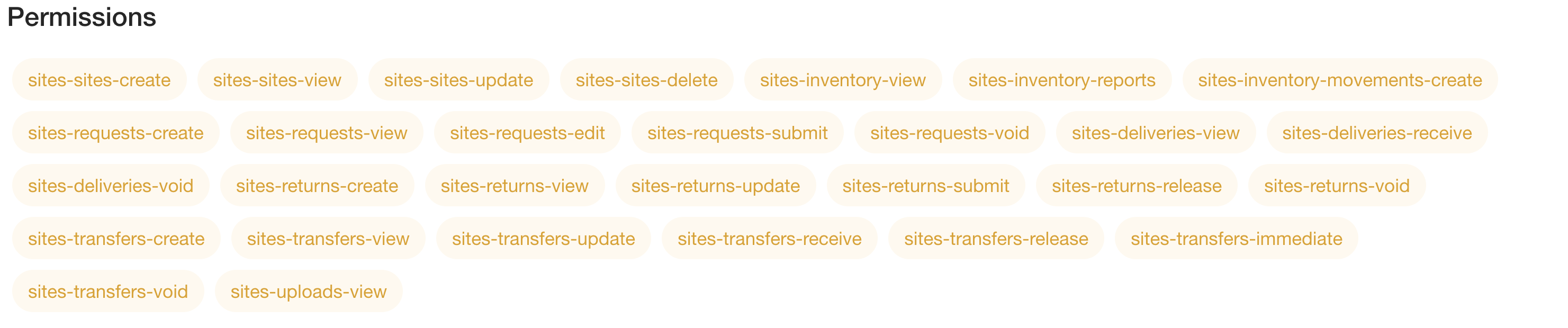
2. The permissions currently assigned to the role will be displayed as highlighted tags below the **Permissions** heading.
3. You can add or remove permissions by reopening the permissions list using the **Click Here** button.
4. Click **Update** to save changes.
> **Note:**\
> Changes made to an existing role take effect immediately for all users assigned to that role.
***
## **Understanding Permissions in a Role**
Each permission represents a specific capability or access area within Cloudscaff.
Permissions are displayed as labeled tags (e.g., *sites-requests-create*, *sites-returns-view*, *sites-transfers-release*).
These define what a user can do in the system once assigned to the role.
> **Example:**\
> The role *Site User – Inventory Management* includes permissions such as creating, viewing, and updating site inventory requests, transfers, and returns.
***
## **Saving Changes**
When you are done configuring or updating a role:
Click **Create** if you are adding a new role.
Click **Update** if you are editing an existing one.
Your changes will be saved and applied instantly across the system.
> **Important:**\
> Users assigned to the modified role may need to refresh their session to load the updated permissions.
***
### **Best Practices**
* Always use consistent naming conventions (e.g., *Site User – Scaffold Management*).
* Keep descriptions clear to make role selection easier for administrators.
* Review role permissions regularly to maintain security and compliance.
* Avoid duplicating roles unless they serve different departments or access levels.
* Restrict permission access to only what is required for the user’s function.
***
### **Example Workflow**
1. Navigate to **Settings → User Profiles.**
2. Click **Select Role** under a user’s profile to open the Role Builder.
3. Choose to **Add (+)** a new role or **Edit** an existing one.
4. Fill in the **Role Name** and **Description** fields.
5. Click **Set Role Permissions – Click Here** to choose applicable permissions.
6. Click **Create** or **Update** to save.
The new or updated role will now be available for assignment to any user in the system.