> For the complete documentation index, see [llms.txt](https://docs.cloudscaff.com/llms.txt). Markdown versions of documentation pages are available by appending `.md` to page URLs; this page is available as [Markdown](https://docs.cloudscaff.com/site-management/sites/how-to-create-a-site.md).
# How to Create a Site
Create and manage new project sites by adding details, linking a customer, setting the address, and assigning users. Each site gets its own unique Site Code.
## **Purpose**
The **Create Site** form is used to add a new project or work location into Cloudscaff. This links the site to a customer, stores the physical address, assigns internal users, and generates a unique Site Code. Once saved, the site becomes available across logs, deliveries, handovers, certificates, and reporting.
***
## **How to Access**
Sites → Select (+) → Complete Form → Create Site → Site Appears Under Active Sites
***
## Form overview
### 1) Site Details
**Site Name** *(required)* – The public name for the site (appears on logs, deliveries, certificates, and reports).
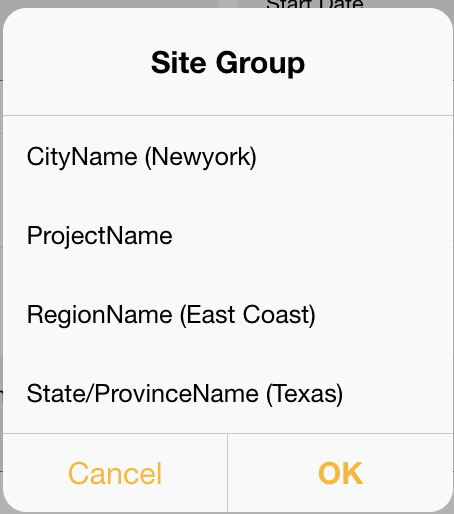
**Site Group** – Choose a grouping bucket for filtering and reporting.
{% hint style="info" %}
[Learn how to add site groups](/settings/templates/site-groups-template-create-and-edit.md)
{% endhint %}
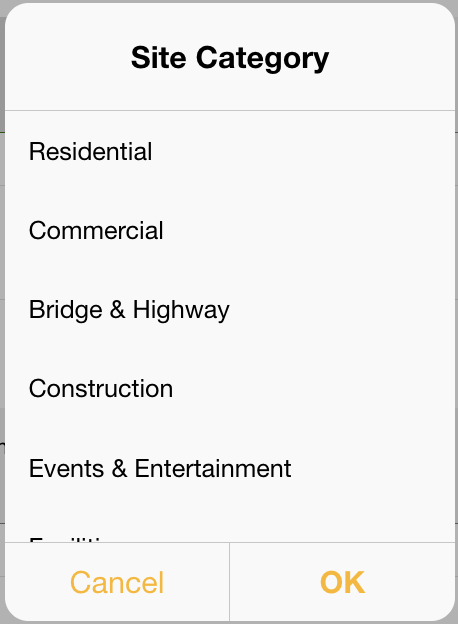
**Site Category** – Classify the type of site (used for filters and analytics).
{% hint style="info" %}
[Learn how to add site categories](/settings/templates/site-categories-template-create-and-edit.md)
{% endhint %}
**Start Date / End Date** – Optional scheduling used by calendars and upcoming logs.
### 2) Site Rep (optional)
Use this when the person who needs to receive handover certificate documents differs from the customer’s default representative.
* **Site Rep Name**
* **Site Rep Email**
* **Site Rep Phone**
> When set, the Site Rep overrides the customer representative on all site documents.
***
### 3) Users
Assign internal users who can access this site.
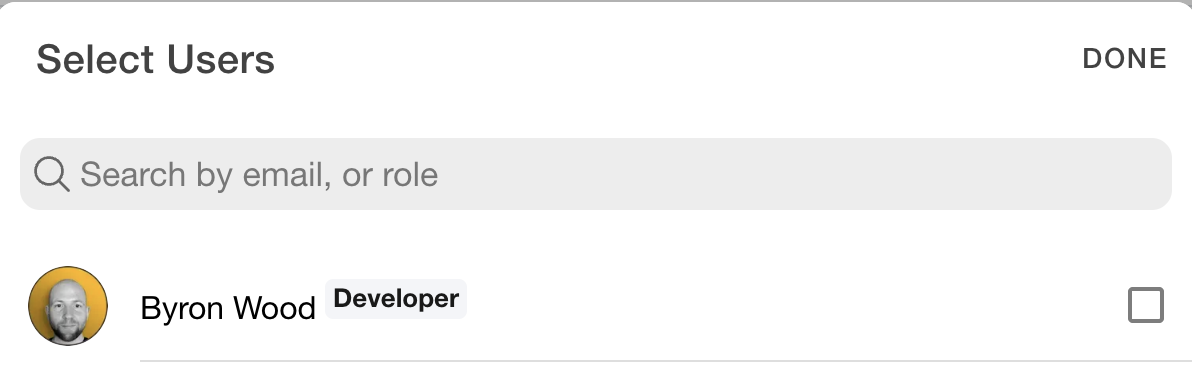
* Click the **green (+)** button to open **Select Users**.
* Search by name, email, or role and tick to add users.
* Click **Done**.
> **Note:**\
> Permissions for viewing or editing sites are managed in \[Roles & Permissions].\
> If a user is not a Site Admin or Super Admin, they will only see and access a site if they are added to it. Be sure to assign users to every site they need to work in.
{% hint style="info" %}
[Learn more about roles and permissions here](/settings/user-management/role-builder-add-or-update-roles.md)
{% endhint %}
{% hint style="info" %}
[Learn how to add a user](/settings/user-management.md)
{% endhint %}
***
### 4) Site Address
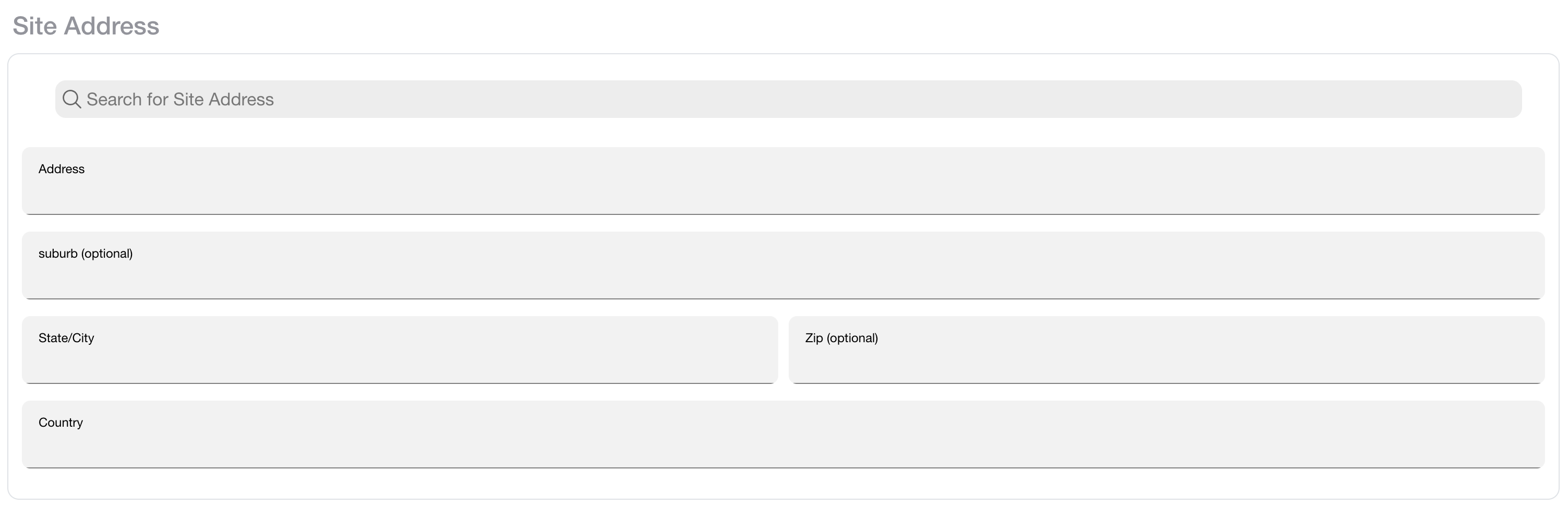
* **Search for Site Address** – Start typing to auto-fill.
* **Address, Suburb, State/City, Zip, Country** – Store the physical address used on all documents.
***
### 5) Customer Details
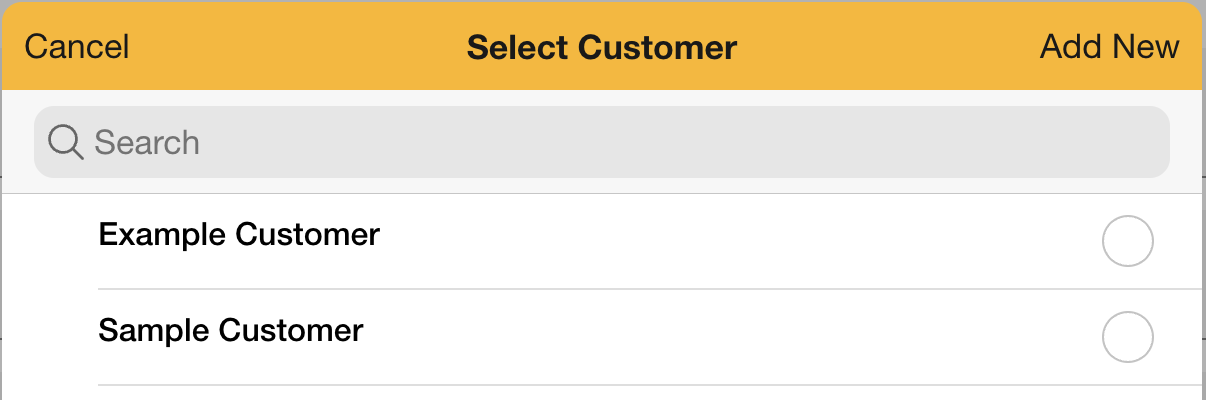
* **Select Customer** – Pick an existing customer or tap **Add New** to create one inline.
* Optional fields: **Email**, **Representative**, **Contact Number**, **Registration Number**, **VAT Number**.
* **Exclude VAT on Estimates and Invoices** – Toggle if this site should be VAT-excluded.
{% hint style="info" %}
[Learn how to manage customers](/settings/customer-management.md)
{% endhint %}
***
### Create the site
When everything looks good, select **Create Site**. You’ll be taken back to the Sites list where the new site appears under **Active Sites** with its auto-generated **Site Code**.
***
> **Tips & validation:**
>
> If you see “Please enter a valid Site Name,” add a name before saving.
>
> The create site button will be greyed out if all the required fields are not added.
>
> You can create the customer and address first to speed up entry (both are searchable).
>
> Keep groups and categories consistent—they’re powerful for filtering, reporting, and dashboards.
>
> If you hit an active-site limit, use **Upgrade Membership** to increase your tier or close an inactive site.