> For the complete documentation index, see [llms.txt](https://docs.cloudscaff.com/llms.txt). Markdown versions of documentation pages are available by appending `.md` to page URLs; this page is available as [Markdown](https://docs.cloudscaff.com/inventory-management/inventory-overview/add-new-item.md).
# Add New Item
Add a new inventory stock item from the Inventory page using the Add New Item modal.
## **Purpose**
Explain how to launch and use the Add New Item modal to create a stock item from the Inventory view.
## **How to Access**
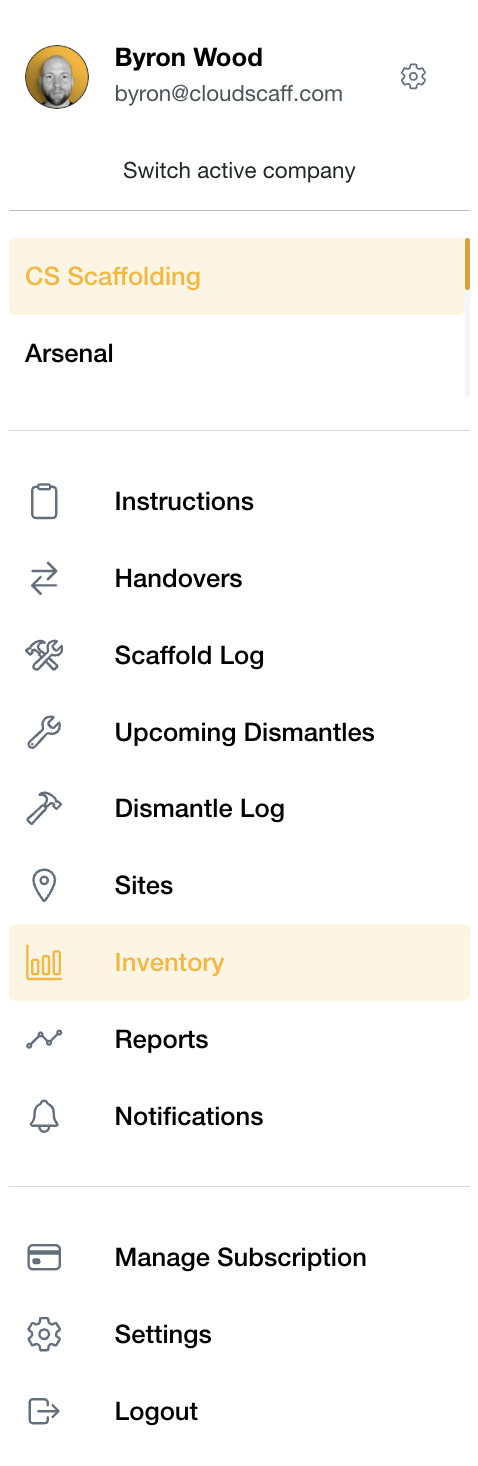
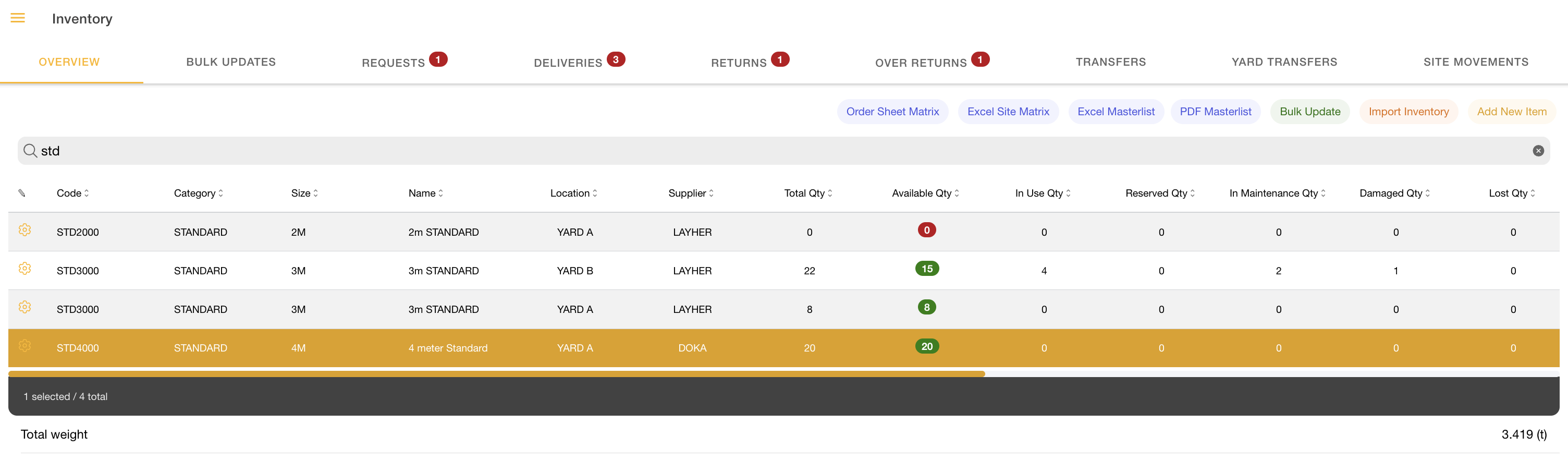
Open the main menu → Select **Inventory** → Stay on the Inventory Overview Tab → Click the **Add New Item** button (*visible only when permitted*).
***
## **Permissions & Visibility**
This tool is only visible if the user has the required permissions. Buttons, actions, and fields may appear or be hidden depending on role.
## **Workflow Overview**
This guide covers the standard workflow: Open Inventory list → Launch Add New Item modal → Enter item details → Save. Variations such as validation errors or permission-based restrictions are noted in the steps.
## **Step-by-Step Workflow**
### **Access the Inventory Management Section**
* What the user does: Open Inventory.
* What the system displays: Inventory list with Add New Item Button (if permitted).
* Outcome: User can start item creation.
### **Open the Add New Item Tool**
* What the user does: Click **Add New Item** Button.
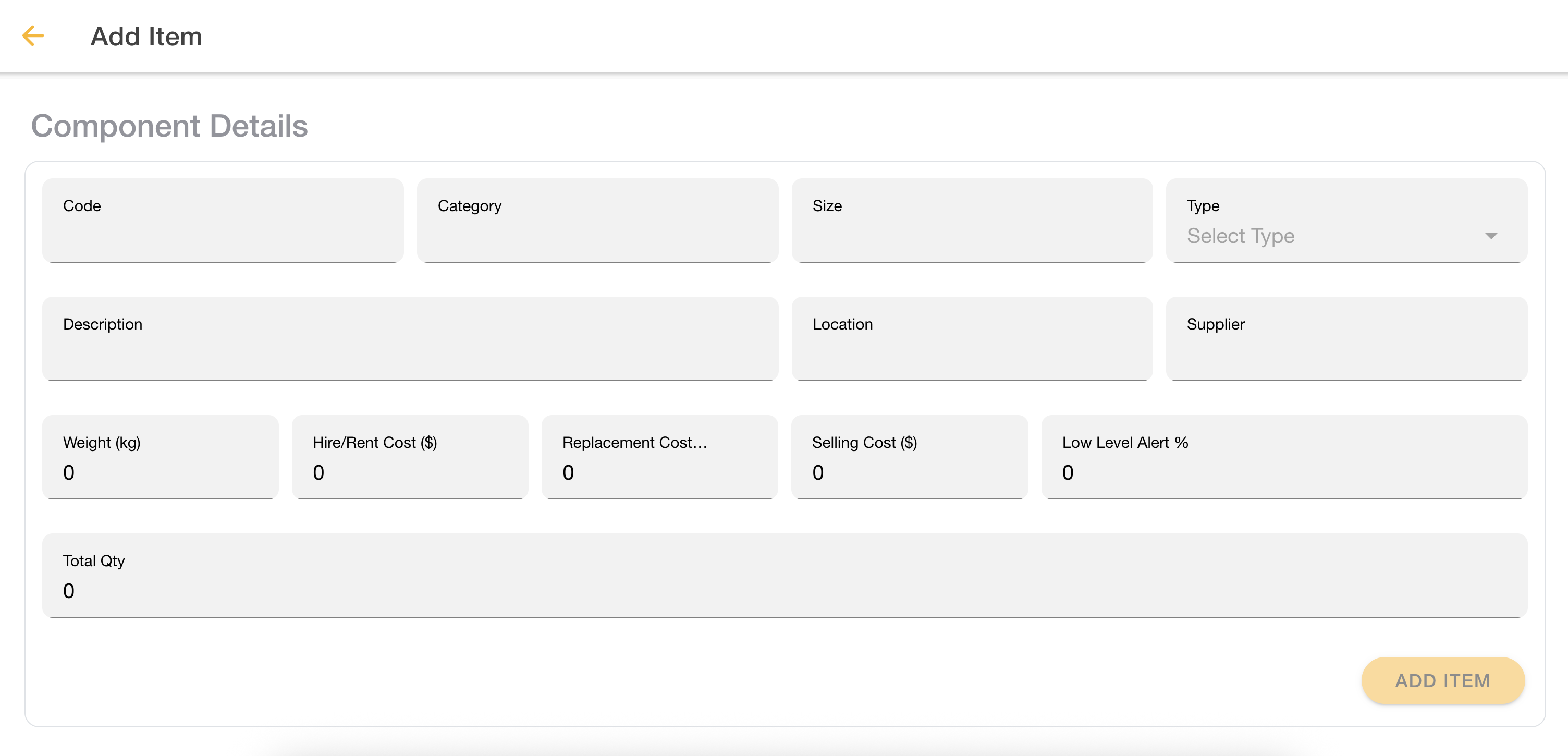
* What the system displays: Fullscreen Add Item tool with empty form fields.
* Outcome: Form ready for input.
### **Complete the Add Item Form**
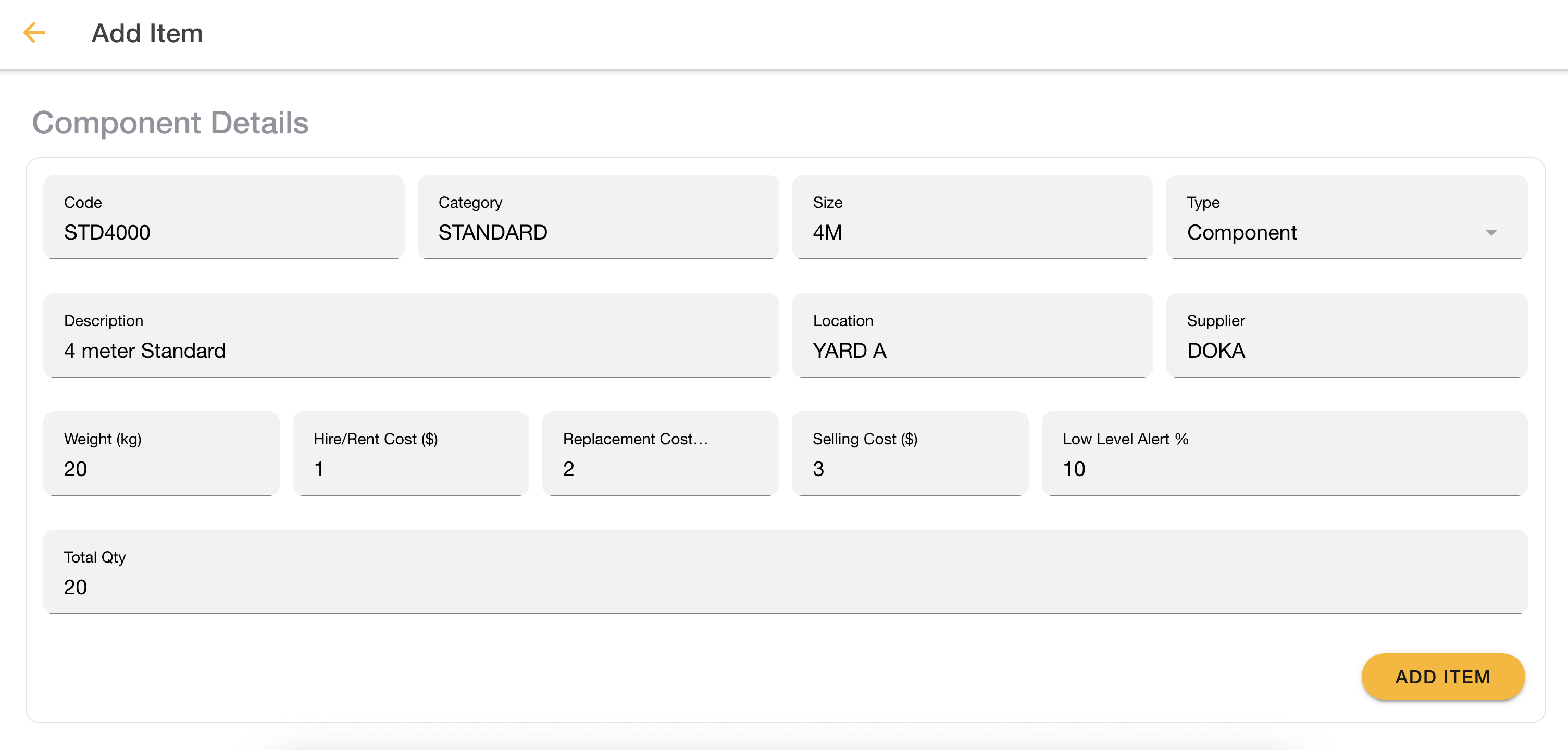
* What the user does: Enter item details and clicks Add Item
* What the system displays: Field validations; errors shown inline if required fields are missing.
* Outcome: Item is created and should appear in the Inventory list upon success.
### Example form fields:
| Field | Improved Description | Mandatory |
| -------------------- | ------------------------------------------------------------------- | --------- |
| **Code** | Internal reference code used to uniquely identify the item | No |
| **Category** | Grouping used to organize inventory items | No |
| **Size** | Size or unit of measure, where applicable | No |
| **Type** | Item type or classification identifier | No |
| **Description** | Additional details or notes about the item | No |
| **Location** | Current storage location (yard, warehouse, or third-party supplier) | No |
| **Supplier** | Supplier or vendor associated with the item | No |
| **Weight** | Weight of a single unit, where applicable | No |
| **Hire / Rent Cost** | Cost to hire or rent the item per unit | No |
| **Replacement Cost** | Cost to replace the item if lost or damaged | No |
| **Selling Cost** | Selling price per unit, if applicable | No |
| **Low Level Alert** | Minimum quantity threshold that triggers a low-stock alert | No |
| **Total Qty** | Total quantity currently recorded in inventory | No |
***
## **What Happens Next**
Record status updates per inventory rules; New item appears in the Inventory list
***
## **Permissions Required**
Permissions are controlled by these permissions:
| Permission needed | Why it matters |
| ---------------------------- | --------------------------------------------------------- |
| inventory-inventory-create | Allows adding new stock items. |
| inventory-inventory-update | Allows editing stock items (also unlocks the add button). |
| roles-inventory-admin-enable | Full inventory admin access; shows the button. |
| roles-super-admin-enable | Full system access; shows the button. |
> **Tips**: You only need one of these; the UI shows the button if any match your permissions list.
***
## **Troubleshooting**
Common visibility or validation issues when adding a new stock item.
| Problem | Solution |
| ------------------------------ | ------------------------------------------------------------------ |
| Cannot see Add New Item Button | Verify create permission for inventory; refresh after role updates |
| Record not saving | Check required fields and validation messages |
| Data missing after save | Confirm system preconditions and retry; check inventory filters |
***
## **Related Pages and Links**
{% hint style="info" %}
[Inventory Overview](/inventory-management/inventory-overview.md)
{% endhint %}
{% hint style="info" %}
[Roles and Permissions](/settings/user-management/role-builder-add-or-update-roles.md)
{% endhint %}